Installation
Before you run Asterion, your system has to be prepared. The loader performs a security check on startup and refuses to launch if any of the items below is required-and-wrong. Work through this checklist once — most of it stays set.
Do all of these first
Skipping a required step is the most common reason the loader won't start. If it errors on launch, come back and re-check this page.
Checklist
- [ ] Secure Boot — Off (BIOS) — required
- [ ] System clock — synced — required
- [ ] No debugger / reverse-engineering tools running (or their drivers loaded) — required
- [ ] Core Isolation / Memory Integrity — optional (loader works either way)
- [ ] TPM / fTPM / PTT — optional (loader works either way; off is safer)
1. Disable Secure Boot — required
Asterion ships with a built-in Secure Boot bypass, but we still recommend turning Secure Boot off in BIOS — it is the simplest, most reliable path and removes one whole class of load-time failures.
- Reboot and enter your BIOS / UEFI (usually
Del,F2,F10orEscat boot — depends on your motherboard). - Go to the Boot or Security section.
- Set Secure Boot to Disabled.
- Save & Exit.
2. Sync your system clock — required
An out-of-sync clock breaks license and session validation.
Settings → Time & language → Date & time → turn on Set time automatically, then click Sync now.
3. Close debugging & reverse-engineering tools — required
The loader will not start while any analysis tool — or its driver — is active. Close them completely before launching (and reboot if you're unsure a driver is still loaded):
- Debuggers — x64dbg, WinDbg, OllyDbg, IDA, Ghidra
- Memory tools — Cheat Engine, ReClass.NET, Scylla
- Process / system inspectors — Process Hacker, System Informer, Process Explorer
- Packet / hex tools — Wireshark, Fiddler, HxD
- Sandbox / VM introspection drivers
Left something running?
A reboot clears any driver that a tool loaded but didn't unload. If the loader still reports a detection after closing everything, restart Windows.
Optional — stronger stealth
These are not required for the loader to launch. Enable them if you want a safer, more undetected session.
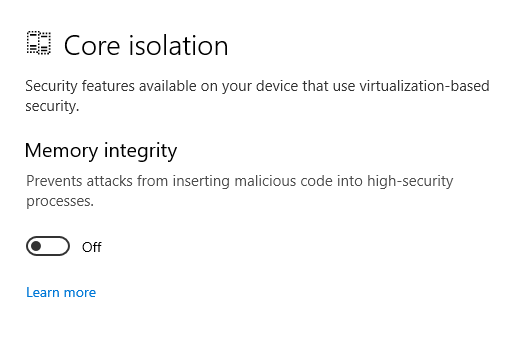
Core Isolation (Memory Integrity)
Not required to disable. Asterion runs with Memory Integrity on or off — leave it where it is unless you want to shave another layer of kernel-side monitoring.
If you do choose to turn it off: Windows Security → Device security → Core isolation details → set Memory integrity to Off and restart.
Fast path
Press Win, type Core isolation, hit Enter — it opens this page
directly.
TPM / fTPM / PTT
Not required to disable — on or off makes no functional difference to the loader. However, TPM off is the safer, more undetected setup: it removes device-attestation signals some anti-cheats use to correlate hardware across accounts and sessions. If you want the strongest stealth posture, turn it off.
In BIOS / UEFI, find the TPM option and set it to Disabled:
| Platform | Setting name |
|---|---|
| Intel | PTT (Platform Trust Technology) |
| AMD | fTPM / AMD CPU fTPM |
| Dedicated chip | TPM / Security Device Support |
Save & exit.
BIOS layouts differ
Every motherboard vendor names and places these differently (ASUS, MSI, Gigabyte, ASRock…). Look under Security, Advanced, or Boot. If you can't find one, search your exact motherboard model + "disable fTPM / PTT".
Run the loader
Once the required items above are set:
- Download the loader from your dashboard.
- Run it as administrator.
- Log in with your Asterion account (or redeem your key first).
- Start your game and inject.
New to scripting from here? Continue to the Introduction.